All help topics
The TV stays locked
Short answer: Your PIN on the TV always unlocks it: press Unlock and enter the 4 digits. To unlock from your phone, use Slide to unlock TV, or Unlock now if a schedule locked the TV.
Updated
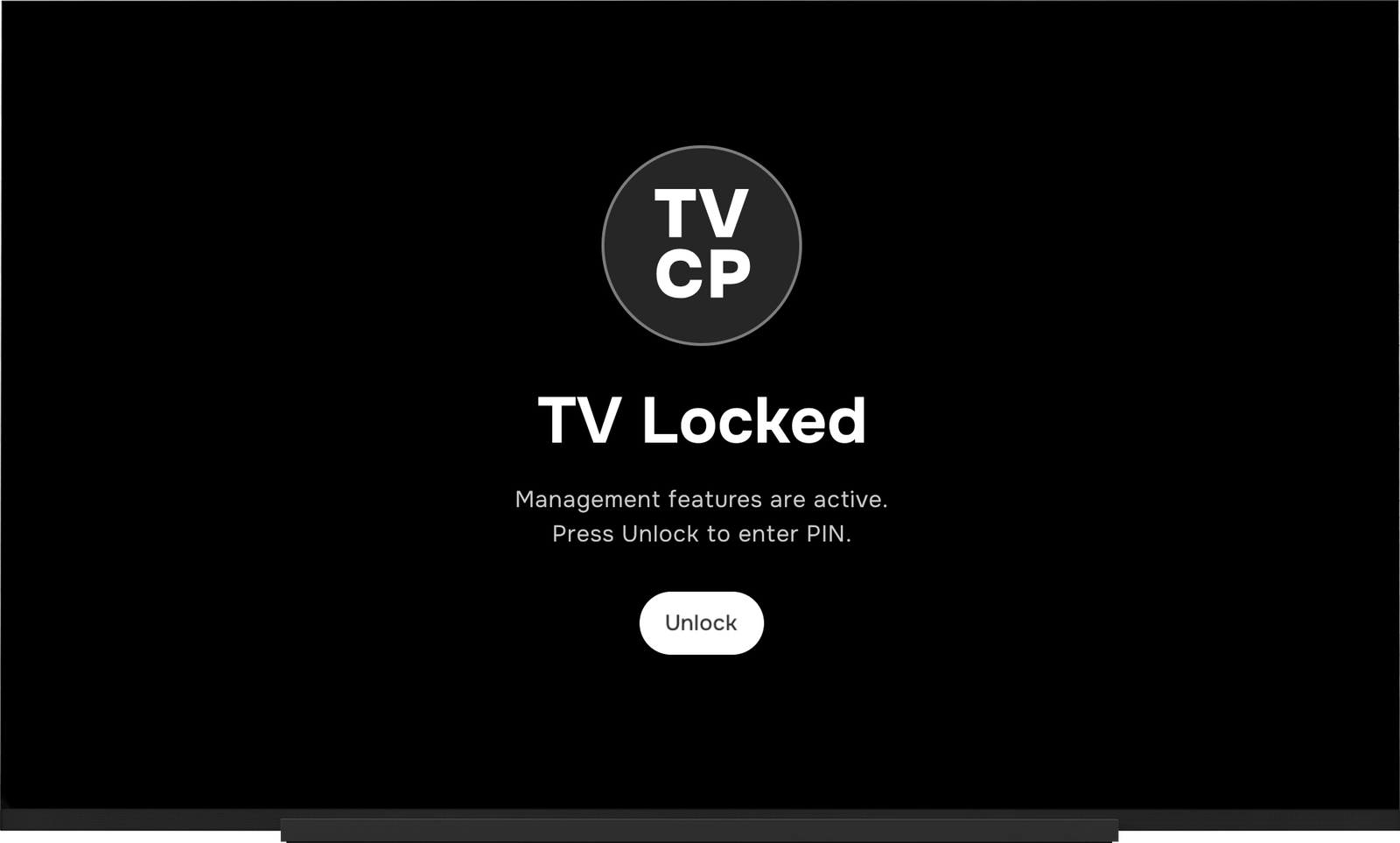
First look at what the TV’s lock screen says. It tells you what locked it:
| The TV says | What locked it | How to unlock from your phone |
|---|---|---|
| TV Locked | You, or a timer set to Lock | Slide to unlock TV |
| A schedule name and Opens at … | Your schedule | Unlock now on the Home screen |
| Protection unavailable | Advanced Protection lost its link | See The TV says “Protection unavailable” |
| Action blocked | Uninstall Blocking stopped something | Press Unlock on the TV and enter your PIN |
Check these, in order
- Use your PIN at the TV. Press Unlock and enter your PIN. This works whatever locked the TV.
- Check the TV is online. If the Guardian app says Couldn’t reach the TV — try again or shows Offline, your phone can’t unlock it until the TV is back online. See My TV isn’t responding to the app.
- Check the schedule. Outside your unlock hours the TV locks by itself. Unlock now lasts until the next scheduled lock, then the schedule takes over again. See Set a schedule.
- Check for a timer. A timer set to Lock locks the TV when it runs out. Unlock it with Slide to unlock TV or your PIN.
- Update both apps. Update the Guardian app from the App Store or Google Play, and the TVCP app on the TV. See Update the TVCP app on your TV.
- If the app says unlocked but the TV stays locked, switch the Weekdays and Weekend cards off in the Schedule tab, wait a few seconds, then switch them back on.
Good to know
Unlocking from the Guardian app is always free, even if your subscription has ended. See What happens when your trial or subscription ends.
Next steps
Set a schedule (unlock hours)
Choose the hours the TV can be used on weekdays and at the weekend. It locks itself the rest of the time.
Set a screen time timer
Give a TV session a time limit from your phone. When it runs out, the TV goes to sleep or locks.
The TV says "Protection unavailable"
Why a TV with Advanced Protection locks itself with Protection unavailable, and how to get it back.