All help topics
I forgot the PIN (or my child knows it)
Short answer: The Guardian app shows your current PIN: open Settings, tap your TV, then PIN code, and tap the eye icon next to Current PIN. To change it, type a new 4-digit PIN and tap Save PIN.
Updated
See or change your PIN
- On your phone: open Settings. In the Guardian app, tap the round button with your initials at the top of the Home screen.
- Tap your TV under Devices.
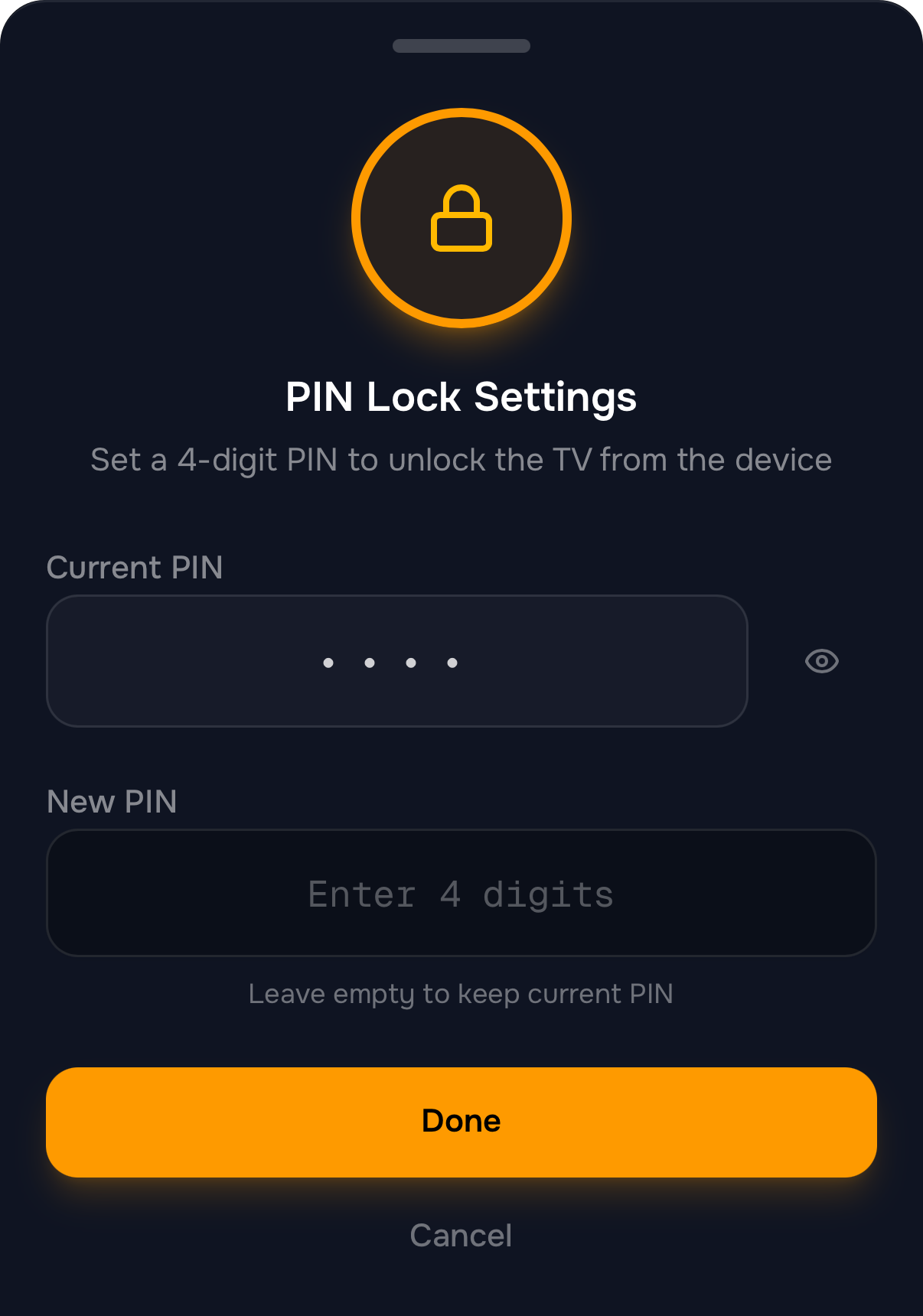
- Tap PIN code. The PIN Lock Settings sheet opens.
- Tap the eye icon next to Current PIN to see it.
- To change it, type 4 new digits in New PIN.
- Tap Save PIN. The TV can now be unlocked with the new PIN.
If your child knows the PIN
Change it with the steps above, and don’t enter the new one where they can watch. One PIN covers all your TVs, so changing it once is enough.
If the TV says “Too many attempts”
After several wrong PINs the TV makes you wait before you can try again. The screen shows how long. You don’t have to wait: unlock the TV from your phone with Slide to unlock TV.
Next steps
Set your PIN
Your 4-digit PIN unlocks the TV at the TV itself and protects TVCP's settings on the TV. Set it during setup or change it later.
The TV stays locked
Work out what locked the TV (a schedule, a timer or a lock from your phone) and how to unlock it.
Lock and unlock the TV
Lock the TV from the Guardian app, unlock it with a slide, or unlock it at the TV with your PIN.