All help topics
Set a screen time timer
Short answer: In the Guardian app, tap the Timer tile on the Home screen, pick a duration, choose Sleep or Lock under When timer ends, and tap Start Timer. The TV shows a countdown and acts when the time is up.
Updated
A timer caps one session: one more episode, then it’s off. For the same hours every day, use a schedule instead.
Steps
- Open the Guardian app and check the Home screen shows the right TV.
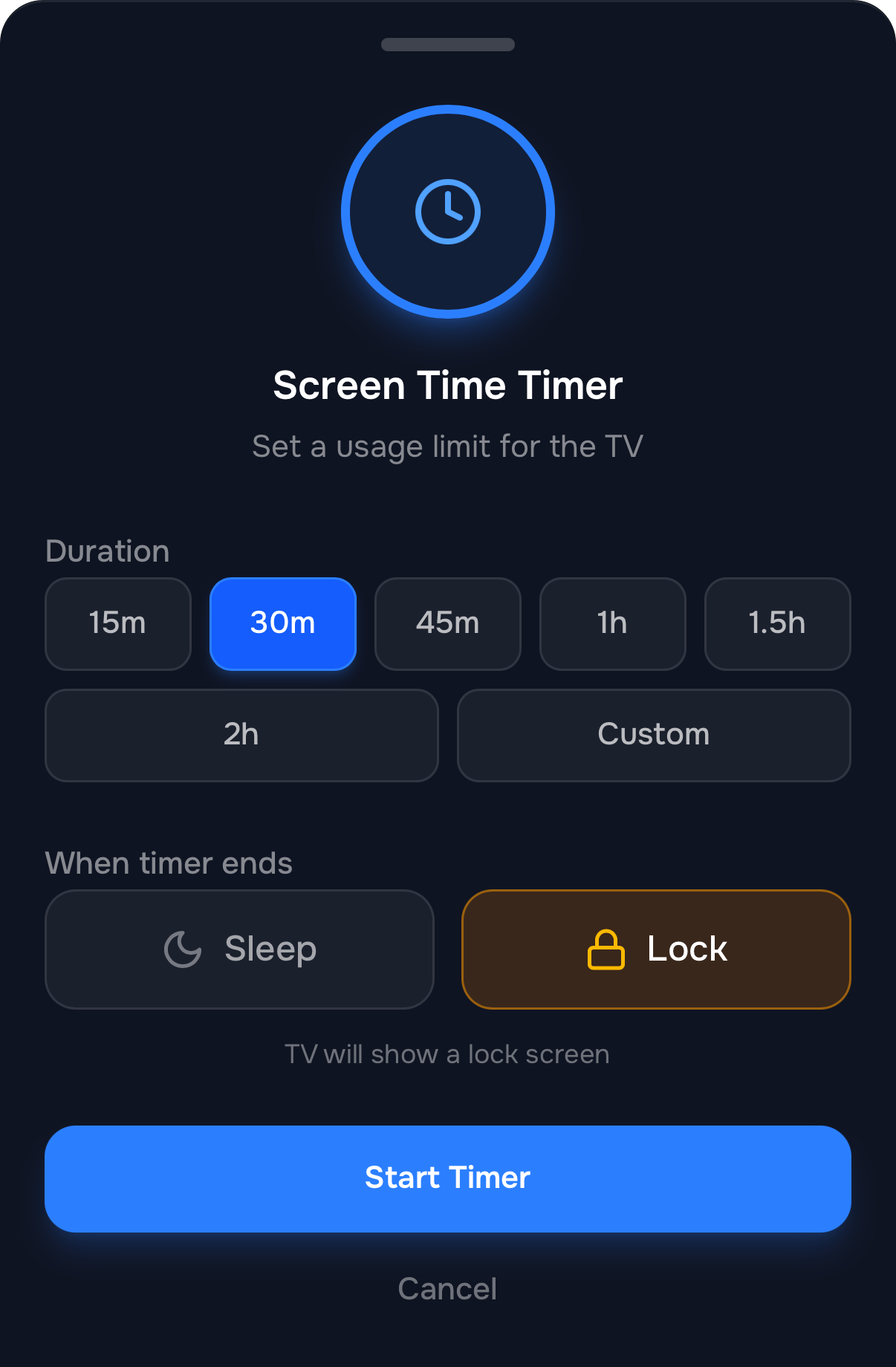
- Tap the Timer tile. The Screen Time Timer sheet opens.
- Pick a duration. Use the buttons (+5m, +15m, +30m, +1h) or set your own.
- Choose what happens when it ends, under When timer ends:
- Sleep: the TV goes to sleep (screen off).
- Lock: the TV shows a lock screen.
- Tap Start Timer. The Home screen shows when the timer ends.
What your child sees
A small countdown appears in the corner of the TV while the timer runs.
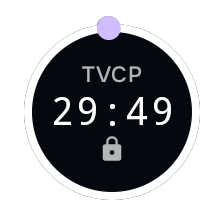
When it reaches zero, the TV goes to sleep or shows the lock screen, depending on what you chose.

Change your mind
- To stop the timer early, tap Cancel Timer on the Home screen. The TV is free to use again.
- To give more time, cancel the timer and start a new one.
Good to know
If the TV locked when the timer ended, unlock it from the app with Slide to unlock TV, or with your PIN on the TV. See Lock and unlock the TV.
Next steps
Lock and unlock the TV
Lock the TV from the Guardian app, unlock it with a slide, or unlock it at the TV with your PIN.
Set a schedule (unlock hours)
Choose the hours the TV can be used on weekdays and at the weekend. It locks itself the rest of the time.
The TV stays locked
Work out what locked the TV (a schedule, a timer or a lock from your phone) and how to unlock it.