All help topics
Can't find "Display over other apps" or "Usage access" on your TV
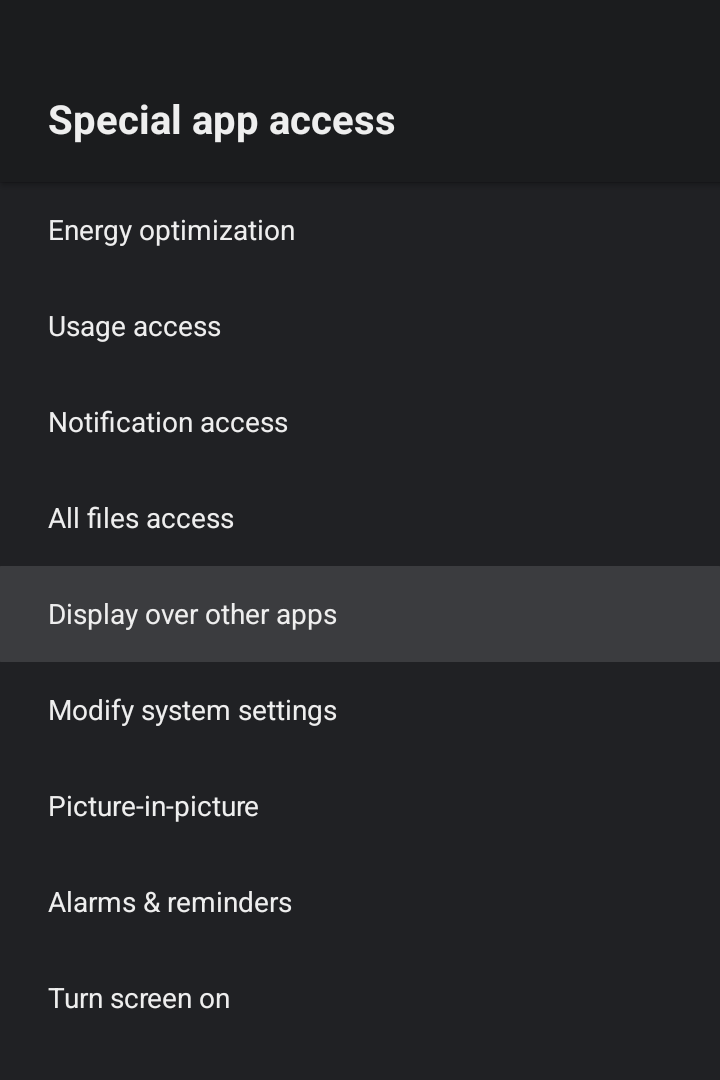
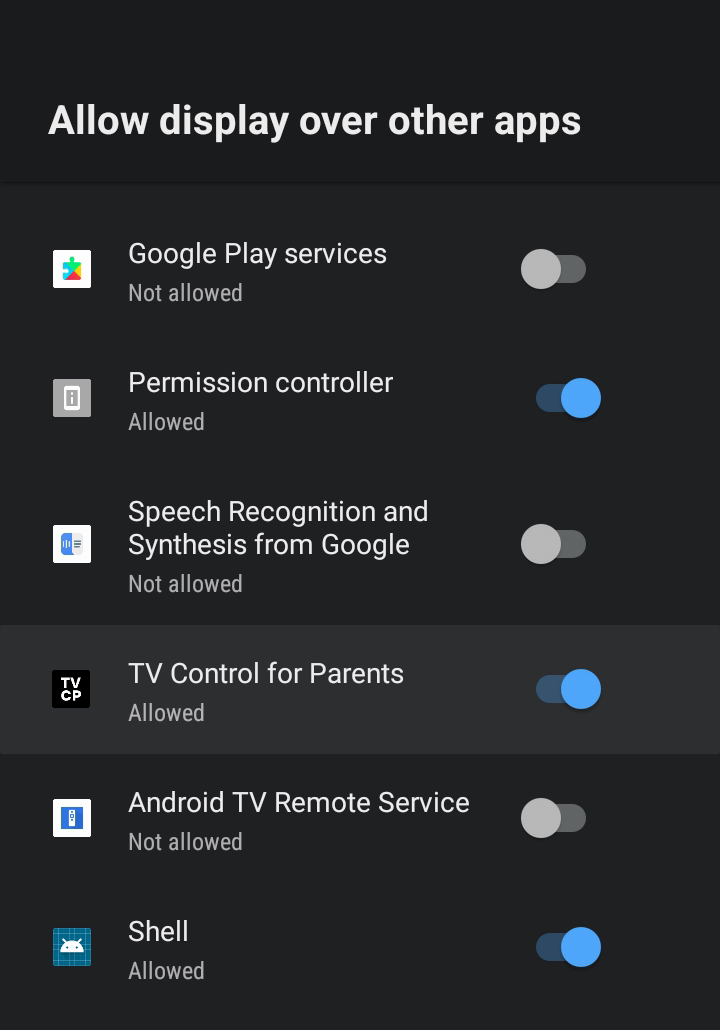
Short answer: On most TVs both settings are in Settings, then Apps, then Special app access. Open Display over other apps (or Usage access), select TV Control for Parents in the list and turn it on.
Updated
TVCP needs two settings on the TV: Display over other apps (for the lock screen and timers) and Usage access (for app blocking). On most TVs, selecting the row on the Turn on protection for this TV screen takes you straight there. Some TVs don’t allow that. You may land in the Apps list or the main Settings screen instead, or nothing may happen. Then go there yourself with the steps below.
The path that works on most TVs
- On the TV: open Settings.
- Open Apps.
- Open Special app access.
- Open Display over other apps.
- Select TV Control for Parents and turn it on. That’s the name the TVCP app has in this list.
- Go back to Special app access, open Usage access, and turn on TV Control for Parents there too.
- Open TVCP again. Both rows should now say Granted. Press Continue.
The names can differ a little between TV brands. If you can’t see Special app access, look through the other entries under Apps.
If you land in the Apps list
If selecting the row opened the TV’s list of apps rather than the setting itself, start from step 3 above. If it opened the main Settings screen, start from step 2.
By brand
- Xiaomi (Mi Box, Mi TV): TVCP can’t open these settings directly on a Mi Box. Open Settings, then Apps, and follow the steps from step 3.
- Sony, TCL, Philips, Google TV devices and others: look for Special app access under Apps in the TV’s settings.
Quick answers
Where are these settings on a Xiaomi Mi Box or Mi TV?
TVCP can't open them directly on a Mi Box. Open Settings, then Apps, then Special app access. Turn on TV Control for Parents under Display over other apps, and again under Usage access.
Where are they on Sony, TCL, Philips or Google TV?
Menu names can differ a little by brand and model. Look for Special app access in the Apps section of the TV's settings. The two settings are inside it.
Why is the app called TV Control for Parents in the list?
That's the TVCP app's full name. It's the one to turn on.
Next steps
Turn on protection: two quick settings on your TV
Grant Display over other apps and Usage access on the TV so TVCP can show the lock screen and block apps.
I blocked an app but my child can still open it
Why a blocked app can still open, starting with the most common cause: another version of the same app.
Which TVs work with TVCP
TVCP works on Google TV and Android TV devices with the Google Play Store. Here's how to check yours.