All help topics
Add another TV
Short answer: A family can pair up to 5 TVs. In the Guardian app, tap Add a TV, pair the new TV with its code or QR code, then choose to copy the rules and PIN from a TV you already set up, or start from scratch.
Updated
Each TV has its own rules, and you switch between them in the Guardian app. First install TVCP on the new TV from its Play Store and open it, so it shows its pairing code.
Steps
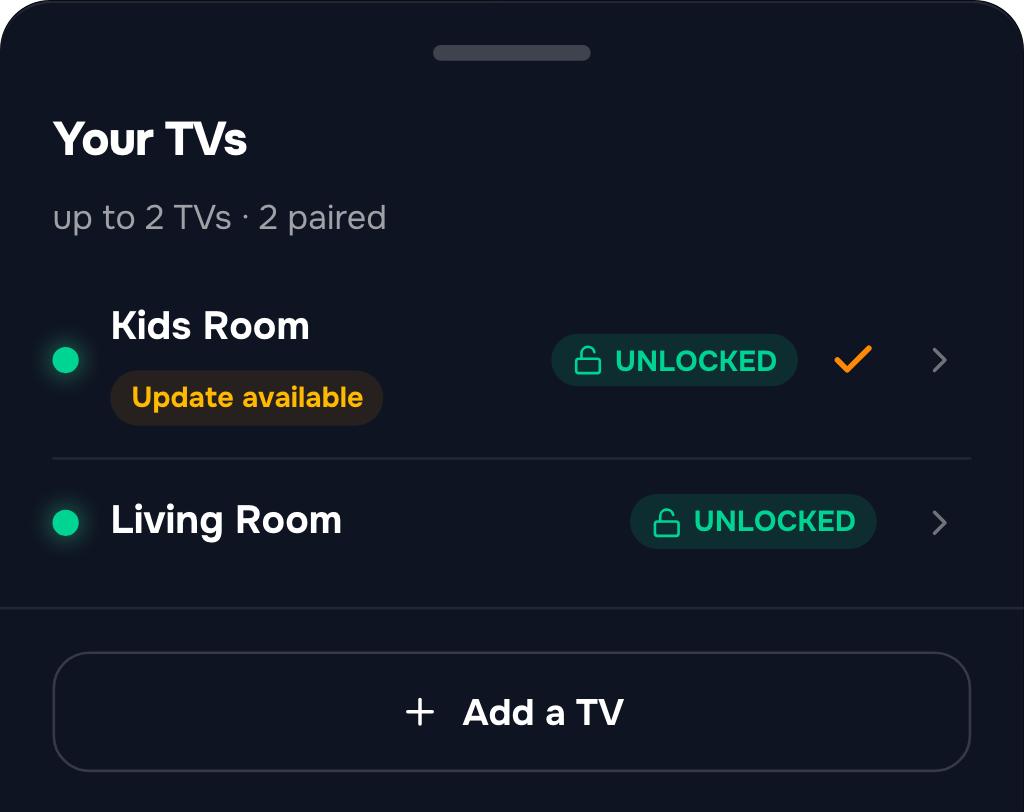
- Open Your TVs. On the Home screen, tap the small button with the down arrow next to your TV’s name.
- Tap Add a TV. You can also find Add a TV in Settings under Devices.
- Pair the new TV. Type the 8-digit code the TV shows, or tap Scan QR Code.
- Choose where the rules come from. On Start with rules you already use?, tap Copy from a TV you already have to copy its rules and its PIN, or tap Set up from scratch.
- Do the two quick settings on the new TV. See Turn on protection.
- Name the TV. When you see TV Connected, you can rename it, for example “Living Room”.
If your plan is full
Your plan covers a set number of TVs. If they’re all in use, the app offers a bigger plan: Upgrade your plan to add more TVs. You can also remove a TV you don’t use any more. See Change your plan and Remove a TV.
Switch between TVs
Open Your TVs and tap a TV. The Home screen then shows that TV, and everything you do applies to it.
Rename a TV
Open Settings, tap the TV under Devices, then tap Rename.
Next steps
Set up TVCP: install the apps and pair your TV
Install the Guardian app on your phone and TVCP on your TV, then pair them with the QR code or the pairing code.
Change your plan: more TVs, fewer TVs, or yearly
Move to a plan with more or fewer TVs, or switch from monthly to yearly, from Settings in the Guardian app.
Remove a TV, or move TVCP to a new TV
Disconnect a TV from your account, what to do if it's switched off, and how to set up TVCP on a new TV.