All help topics
Keep TVCP running (battery optimization)
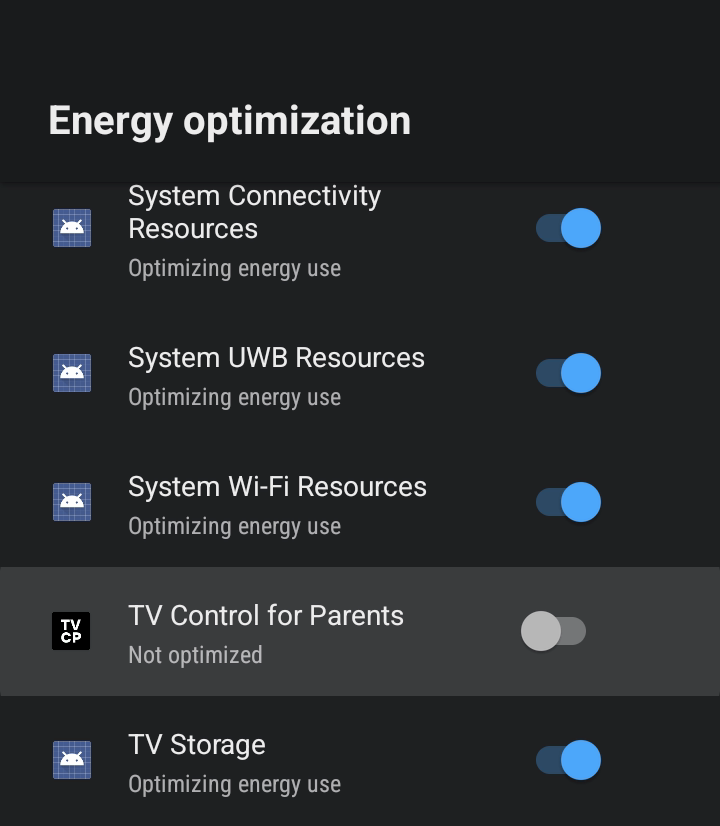
Short answer: Some TVs close apps in the background to save power, which can pause TVCP. This setting is optional: on the TV, set TV Control for Parents to Don't optimize (or Unrestricted, or No restrictions) in the TV's battery settings. Some TVs show a switch instead: turn it off.
Updated
Battery saving can close TVCP in the background and pause protection. This setting is optional. If your TV often stops following your rules until you open TVCP again, turn it on.
From the TVCP app on the TV
- Open TVCP on the TV.
- Open Battery optimization. During setup it’s the third row on Turn on protection for this TV. Later, select the settings button in TVCP, enter your PIN, and choose Enable next to Battery Optimization.
- Follow Keep protection running. TVCP shows four steps, because the page differs by brand. Select Open settings.
- Open Apps, then find TVCP. Look for Battery or Power.
- Choose Don’t optimize, Unrestricted or No restrictions, whichever your TV shows. If there’s a switch instead, turn it off.
- Press Back. TVCP shows Protection will stay on when it’s done.
The path in the TV’s settings
On many TVs the setting is in Settings → Apps → Special app access → Battery optimization (on some TVs Energy optimization). Select TV Control for Parents and choose Don’t optimize. Some TVs show a switch next to the app instead: turn it off, so it says Not optimized. The names can differ a little between TV brands, and some TVs don’t have this setting at all. That’s fine: TVCP still works.
Good to know
- On most TVs, the remote’s power button only puts the TV to sleep. TVCP starts again by itself after a full restart (unplugged and plugged back in). After the TV wakes from sleep, TVCP can take a while to reconnect. Opening TVCP on the TV once brings it back straight away.
- If the Guardian app can’t reach your TV, see My TV isn’t responding to the app.
Next steps
My TV isn't responding to the app
What to do when the Guardian app can't reach your TV or shows it as offline.
I blocked an app but my child can still open it
Why a blocked app can still open, starting with the most common cause: another version of the same app.
Turn on protection: two quick settings on your TV
Grant Display over other apps and Usage access on the TV so TVCP can show the lock screen and block apps.