All help topics
Block apps like YouTube or Netflix
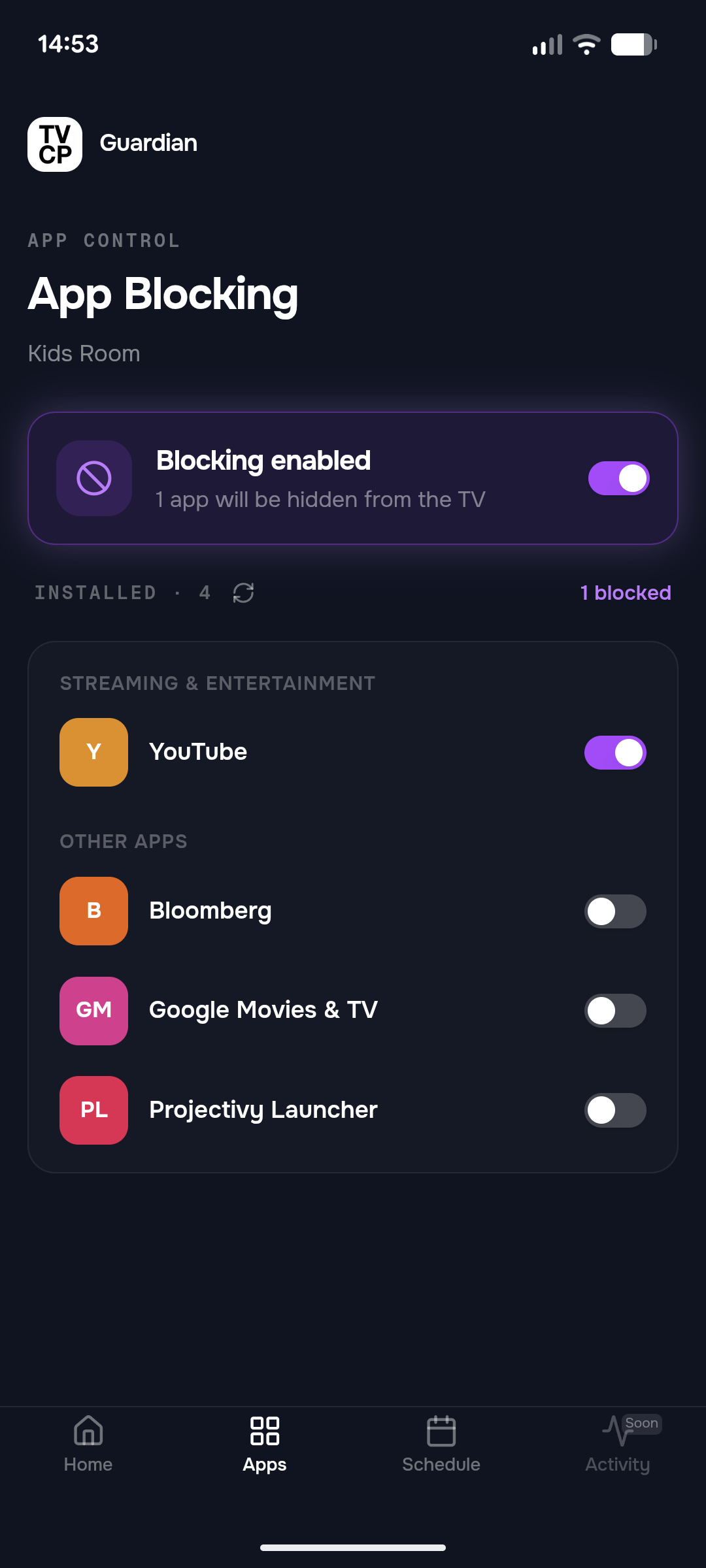
Short answer: In the Guardian app, open the Apps tab and switch on each app you want to block. Changes save by themselves and reach the TV right away. Block every version of an app, for example YouTube, YouTube Kids and YouTube Music.
Updated
Steps
- Open the Apps tab in the Guardian app. It lists the apps installed on the TV.
- Switch on each app you want to block.
- Block every version. YouTube, YouTube Kids and YouTube Music are separate apps, and blocking one doesn’t block the others. Switch on each one.
- Wait a moment. There’s no Save button: your changes save by themselves after a second or two.
What your child sees
When your child opens a blocked app, the TV sends them back to the home screen, or covers the app with App blocked. The TV may also show a short message: App blocked by your guardian.
Pause blocking for a while
The summary card at the top of the Apps tab has a round pause button. Pausing stops blocking but keeps your list, and the card says Paused. Tap the button again to resume.
To stop blocking an app for good, switch it off in the list.
If the list is empty
If the tab says Permission Needed on TV, the TV hasn’t shared its list of apps yet:
- Open the TVCP app on your TV.
- Press Agree on Installed Apps Access.
The list appears in the Guardian app once the TV sends it. App blocking also needs Usage access on the TV. See Turn on protection.
Good to know
To stop apps being uninstalled, and keep your child out of the Play Store and the TV’s settings, turn on Uninstall Blocking.
Next steps
I blocked an app but my child can still open it
Why a blocked app can still open, starting with the most common cause: another version of the same app.
Stop apps being uninstalled (Uninstall Blocking)
Uninstall Blocking stops apps being removed and keeps your child out of the TV's Settings and the Play Store.
Turn on protection: two quick settings on your TV
Grant Display over other apps and Usage access on the TV so TVCP can show the lock screen and block apps.