All help topics
Limit the volume
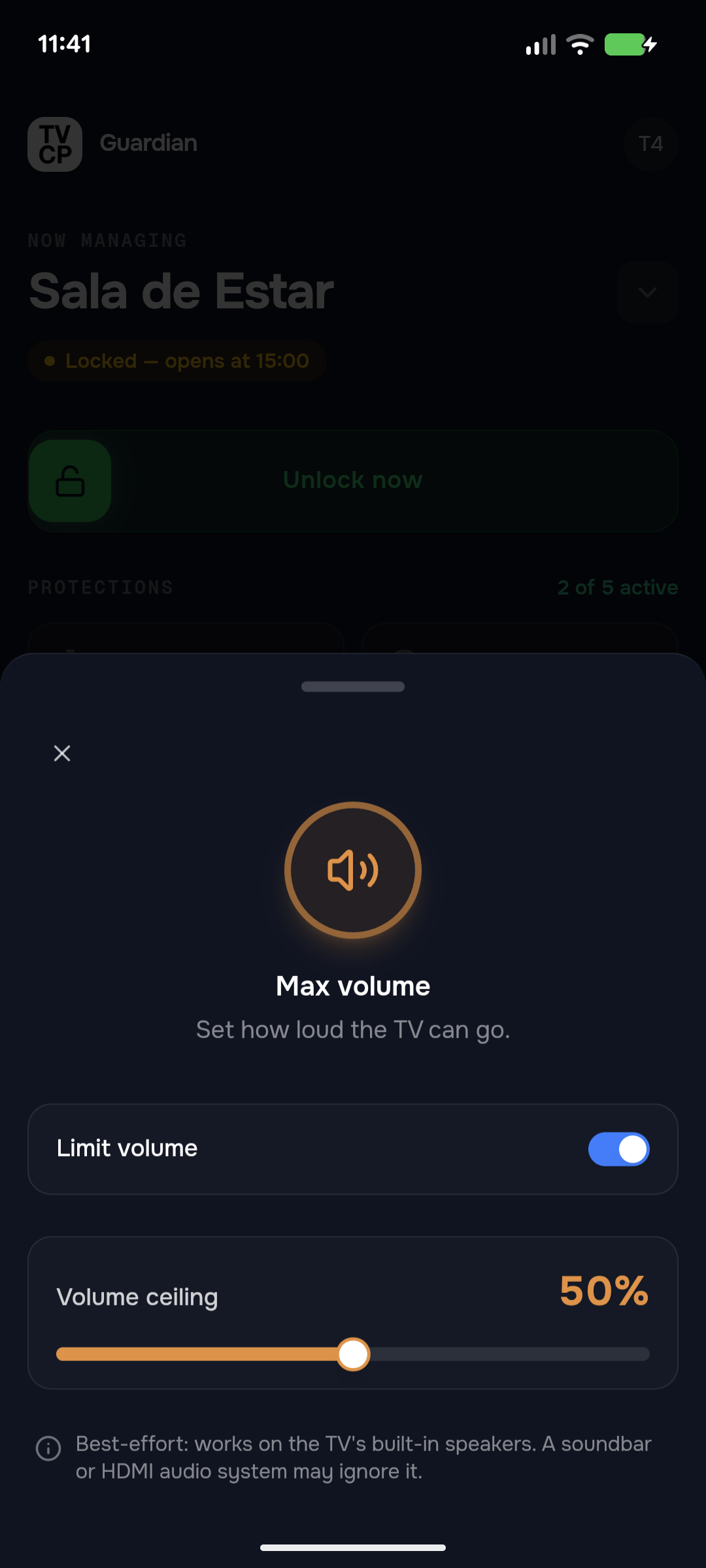
Short answer: In the Guardian app, tap the Max volume tile on the Home screen, switch on Limit volume and drag the Volume ceiling to the level you want. It works on the TV's built-in speakers; a soundbar or HDMI audio system may ignore it.
Updated
Steps
- Open the Guardian app and check the Home screen shows the right TV.
- Tap the Max volume tile. The Max volume sheet opens.
- Switch on Limit volume.
- Drag Volume ceiling to the highest level you want to allow.
The tile then shows the cap, for example Capped at 50%. Your child can still turn the volume down, but not above the ceiling.
Where it doesn’t work
The limit works on the TV’s own speakers. A soundbar, AV receiver or other HDMI audio system has its own volume control, and it may ignore the limit.
Good to know
- To remove the limit, switch Limit volume off.
- If the sheet says Update Required, the TVCP app on the TV is too old for this feature. See Update the TVCP app on your TV.
Next steps
Update the TVCP app on your TV
Update TVCP on the TV from the TV's Play Store, or send the update from your phone. Your settings are kept.
Lock and unlock the TV
Lock the TV from the Guardian app, unlock it with a slide, or unlock it at the TV with your PIN.
How TVCP works
Two apps, one system: you set the rules in the Guardian app on your phone, and the TVCP app on the TV enforces them.