Your TV, your rules.
Set limits. Block apps. Instantly.
7-day free trial · then from $3.99/month · cancel anytime
On your TV, open the Play Store and search for TV Control for Parents. If it's there, your TV works.
Does my TV work?Then get the Guardian app and pair it with your TV. That's where you set the rules.
Why we made TVCP
We're parents too.
We know the “one more episode”, and the walk back to the living room to say it's time, again. That's why we built TVCP. The TV keeps the rule for you, and when time's up, the timer ends it, not you.
How It Works
Two Apps. One System.
One app on the TV, one on your phone. Your phone is the remote control, and the TV enforces your rules.
TVCP App
Lives on the TV. Enforces your rules — locks the screen, blocks apps, runs timers. Kids can't bypass it.
Guardian App
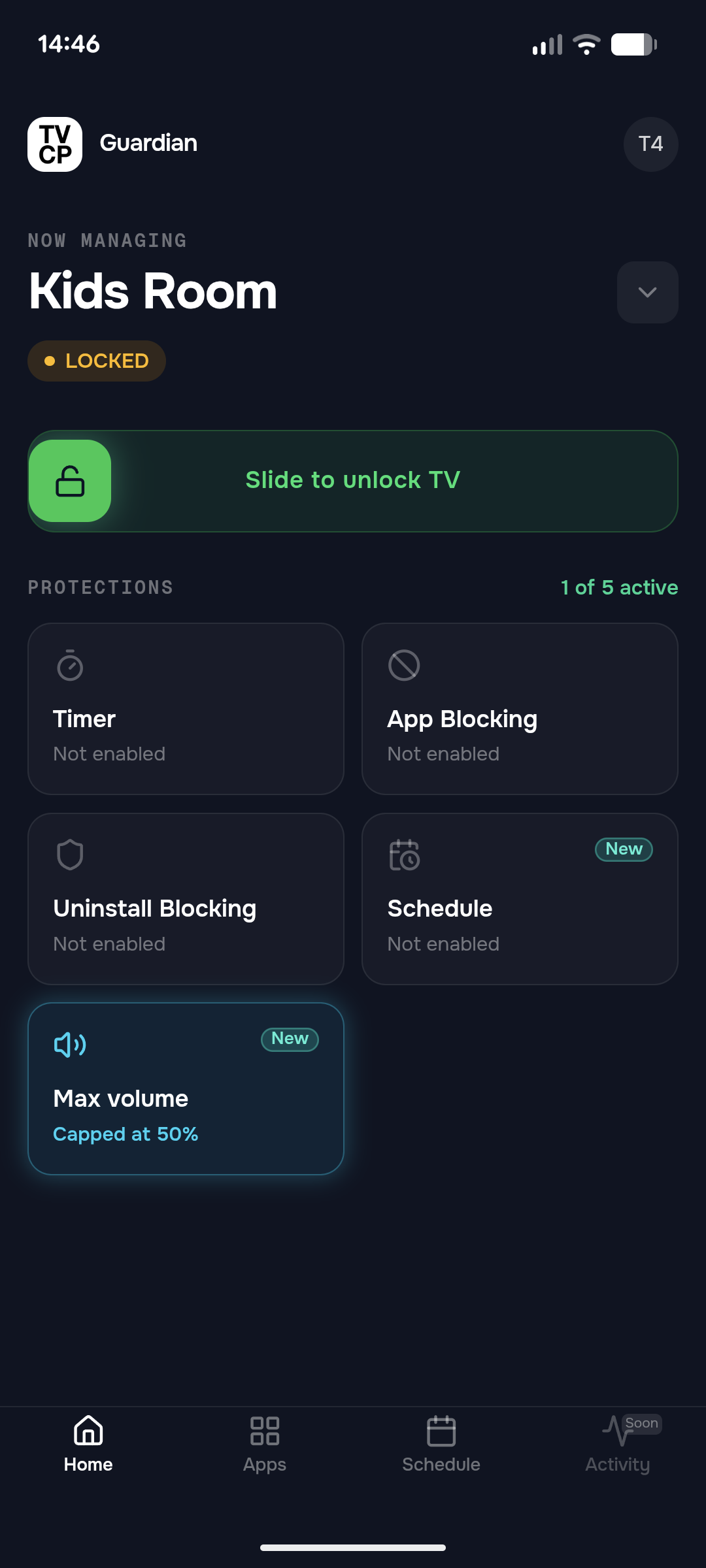
Your remote control. Set screen time limits, block apps, and lock the TV — from anywhere.
Install TV Control for Parents from the Play Store on your TV. If you can find it, your TV works.
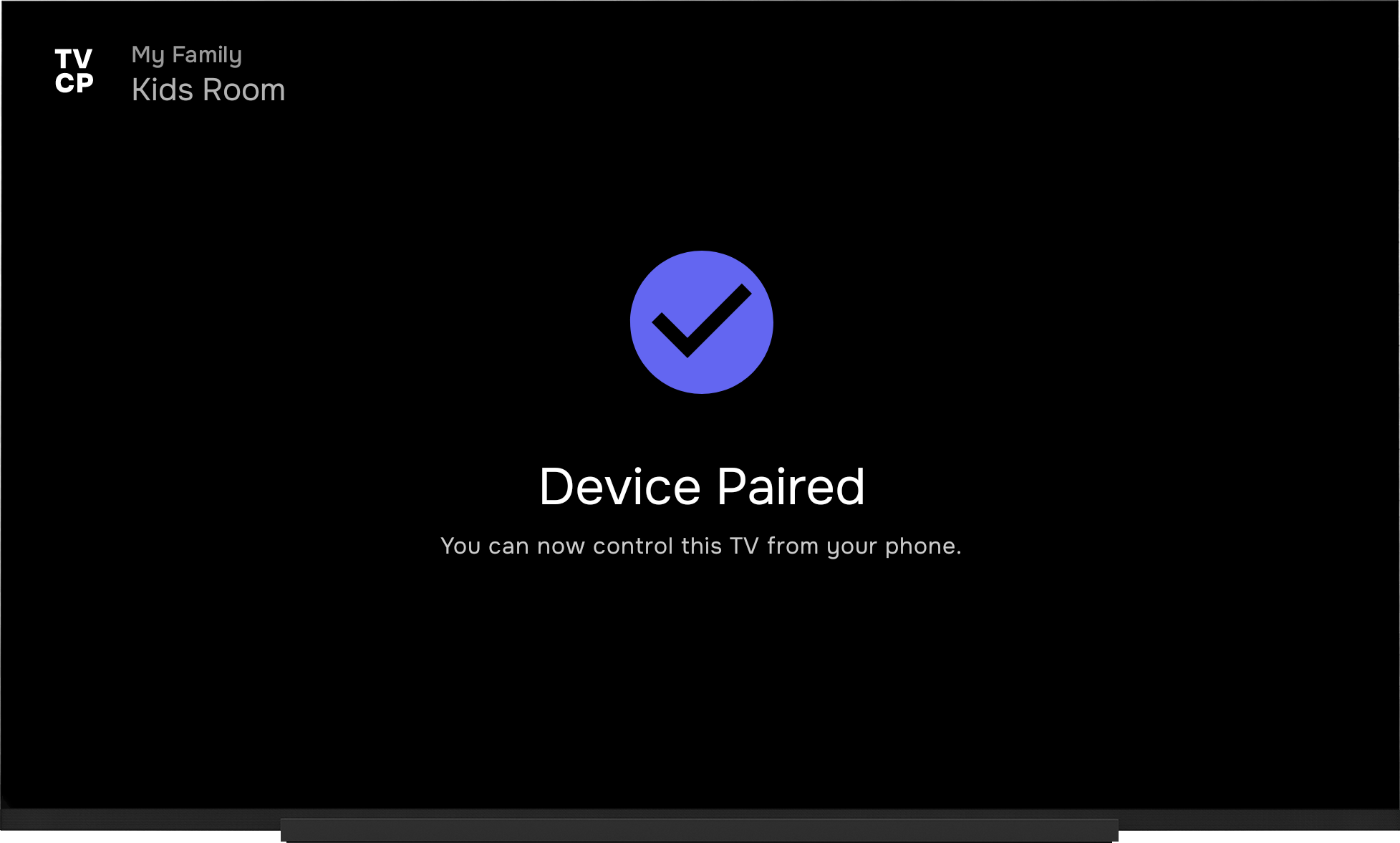
Install Guardian on your phone & scan the QR code
Control the TV remotely — rules apply instantly
Features
Everything You Need
Take full control of your child's TV experience with powerful, easy-to-use parental controls.
Set a Viewing Schedule
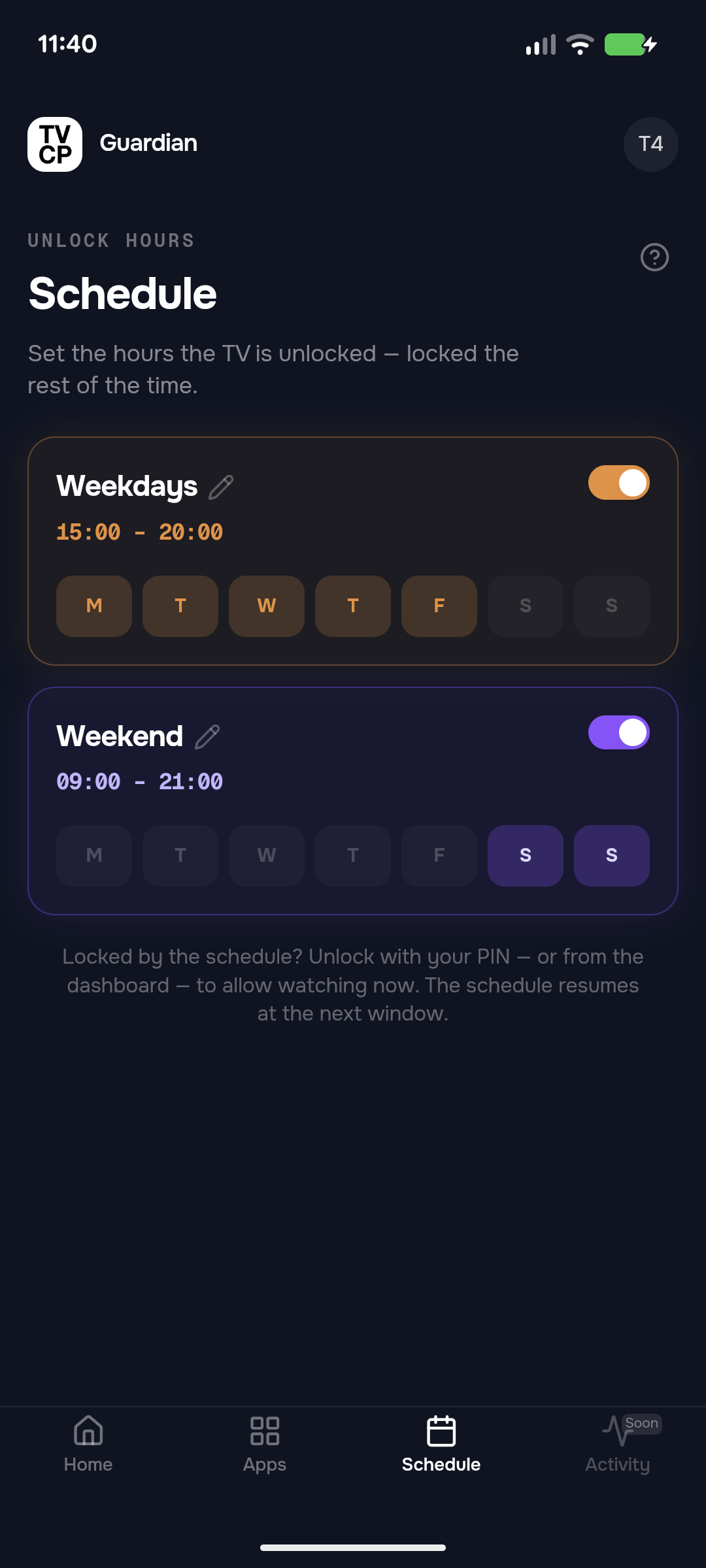
Different rules for weekdays and weekends
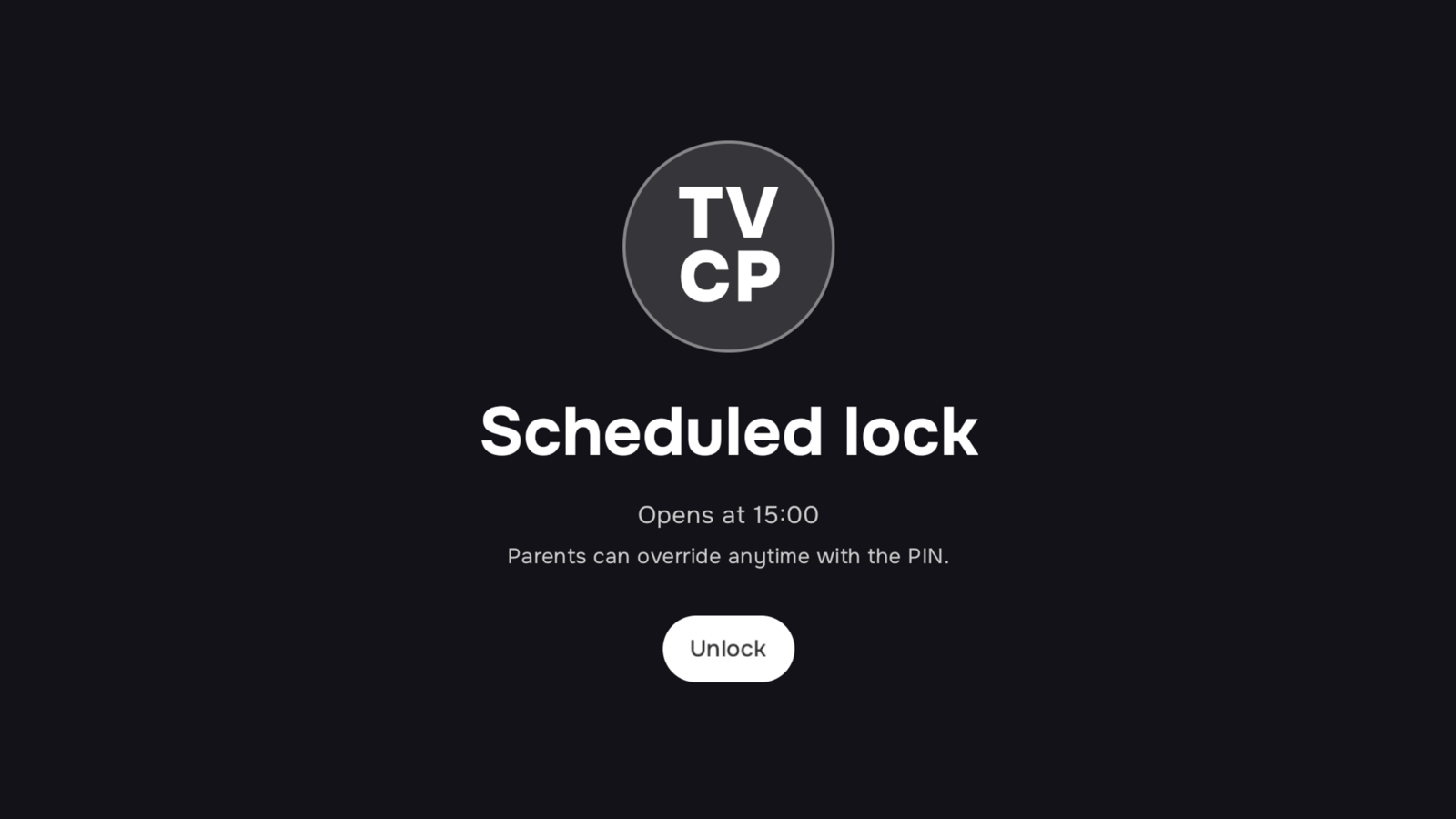
Set the hours the TV is allowed and when it locks, straight from your phone. Give weekdays and weekends their own rules — set it once and the TV keeps to it.
Block Apps Instantly
Allow only the apps you choose
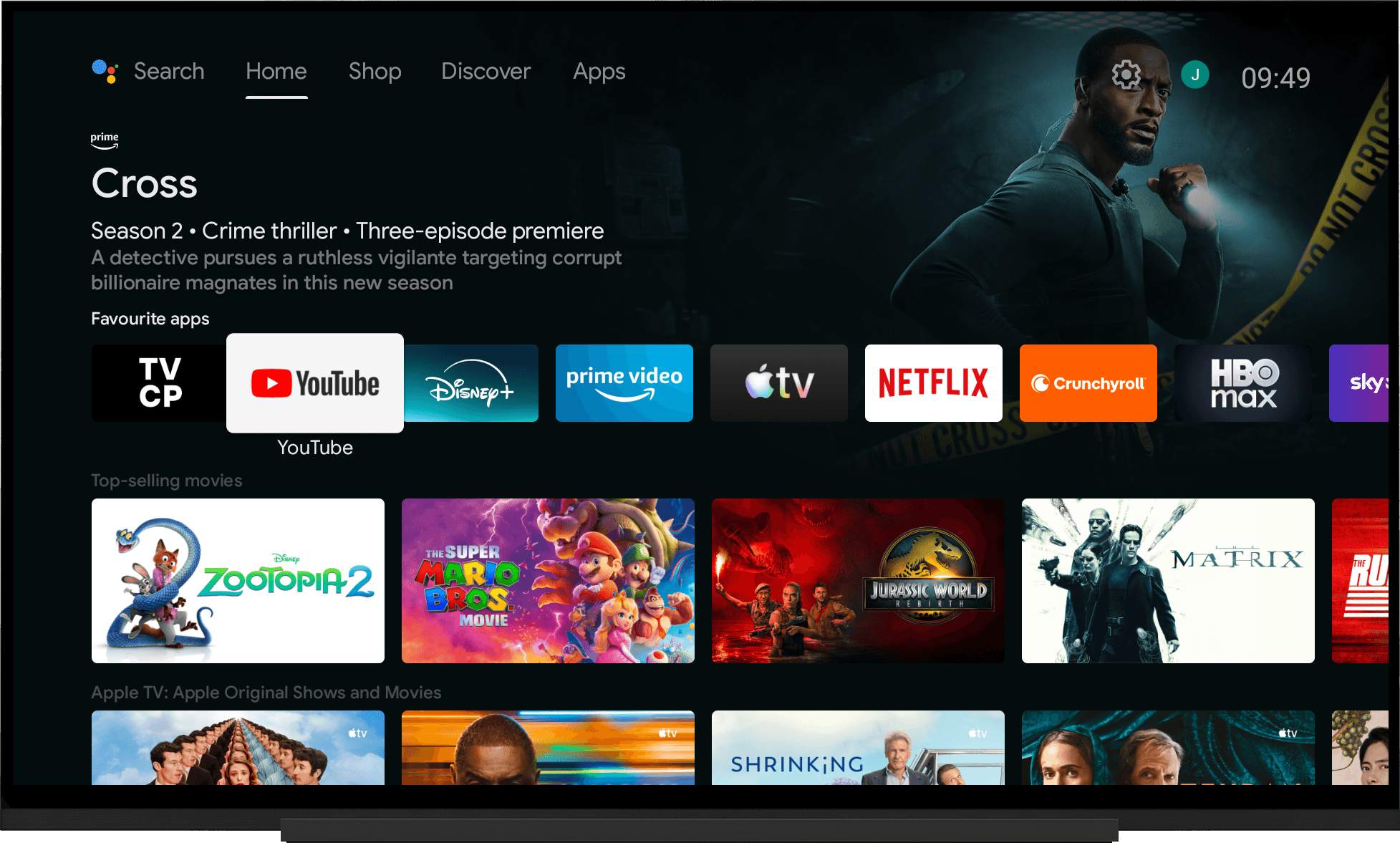
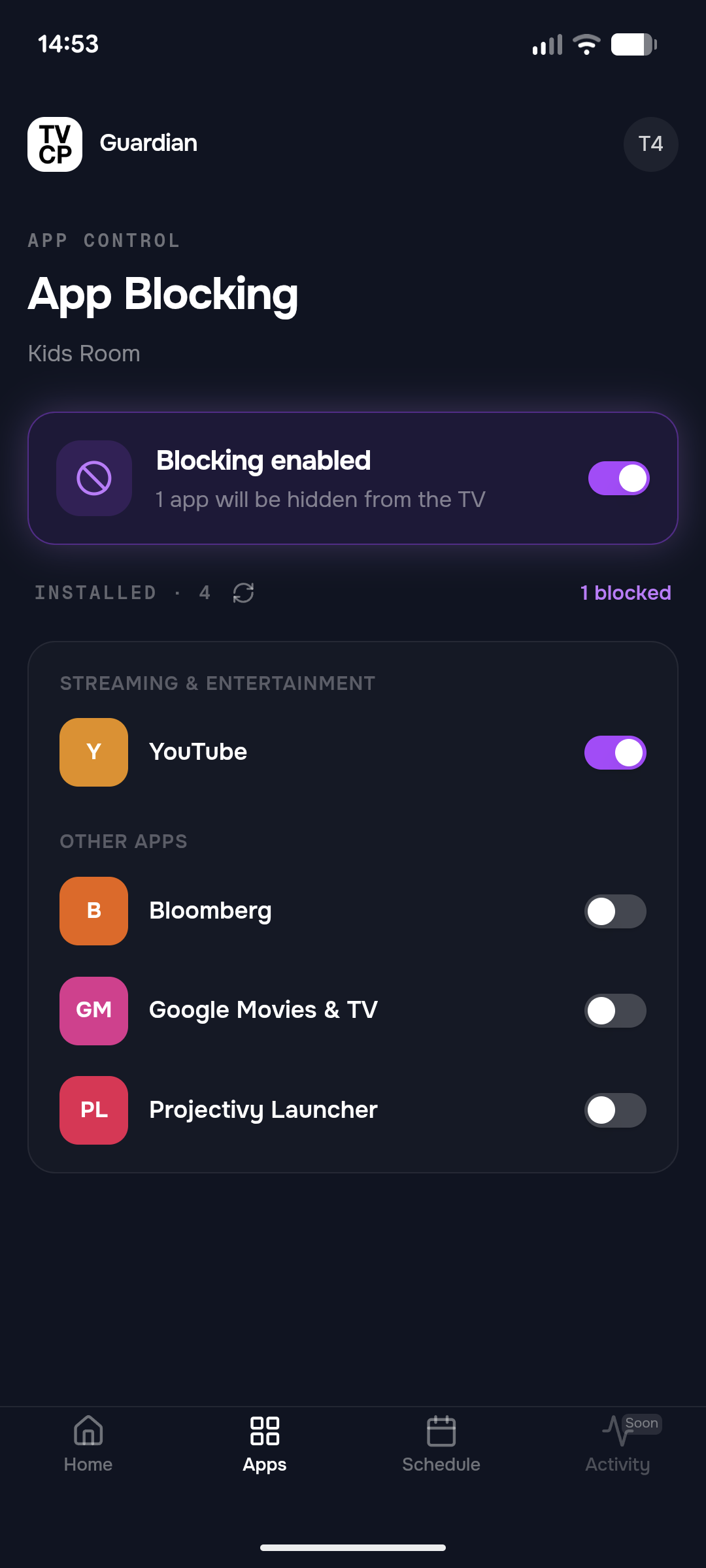
Block YouTube, Netflix, or any app with a single tap. Control exactly which apps your kids can access on the TV. Changes apply instantly — no reboot needed.
Set Screen Timers
Give any session a time limit
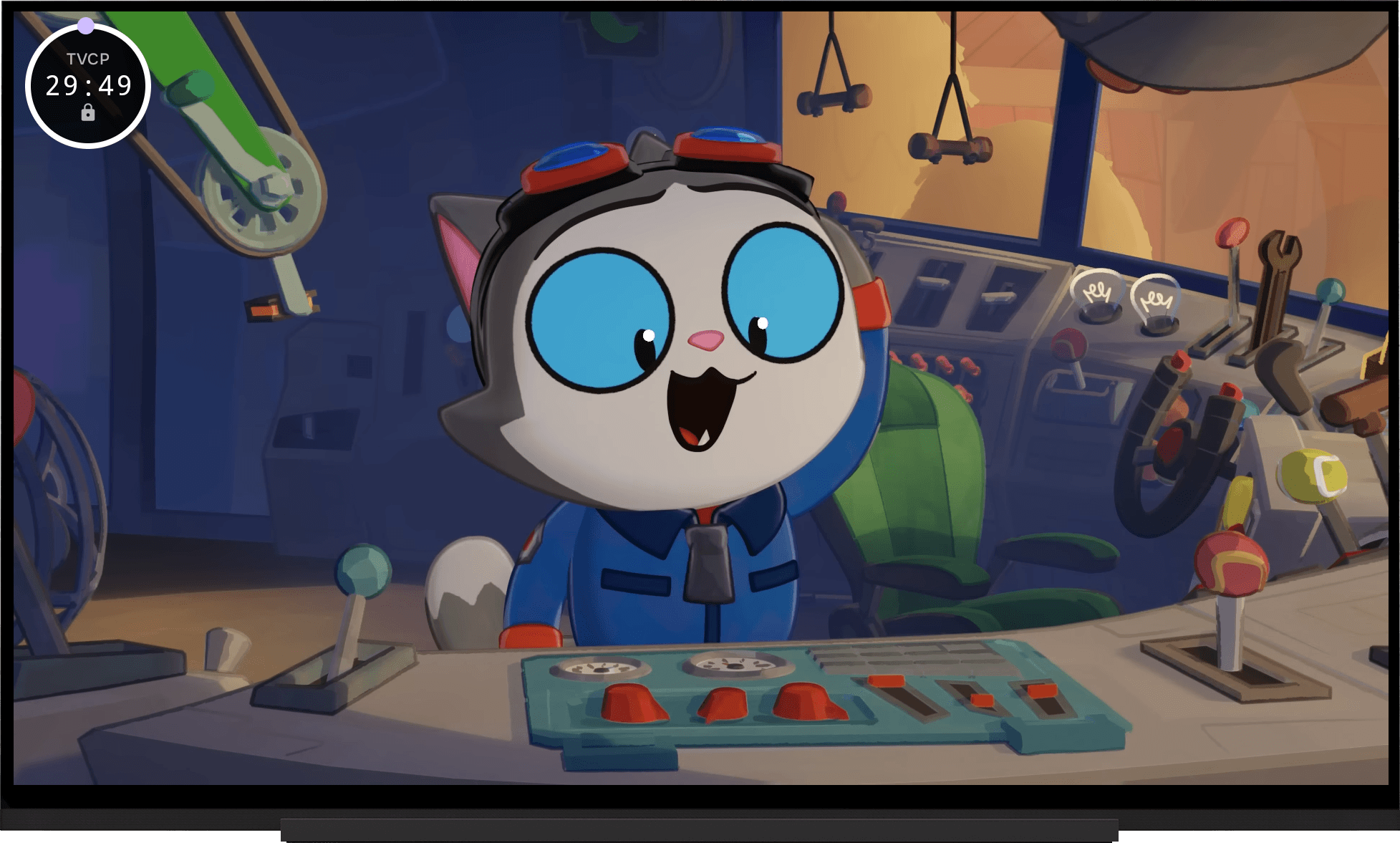
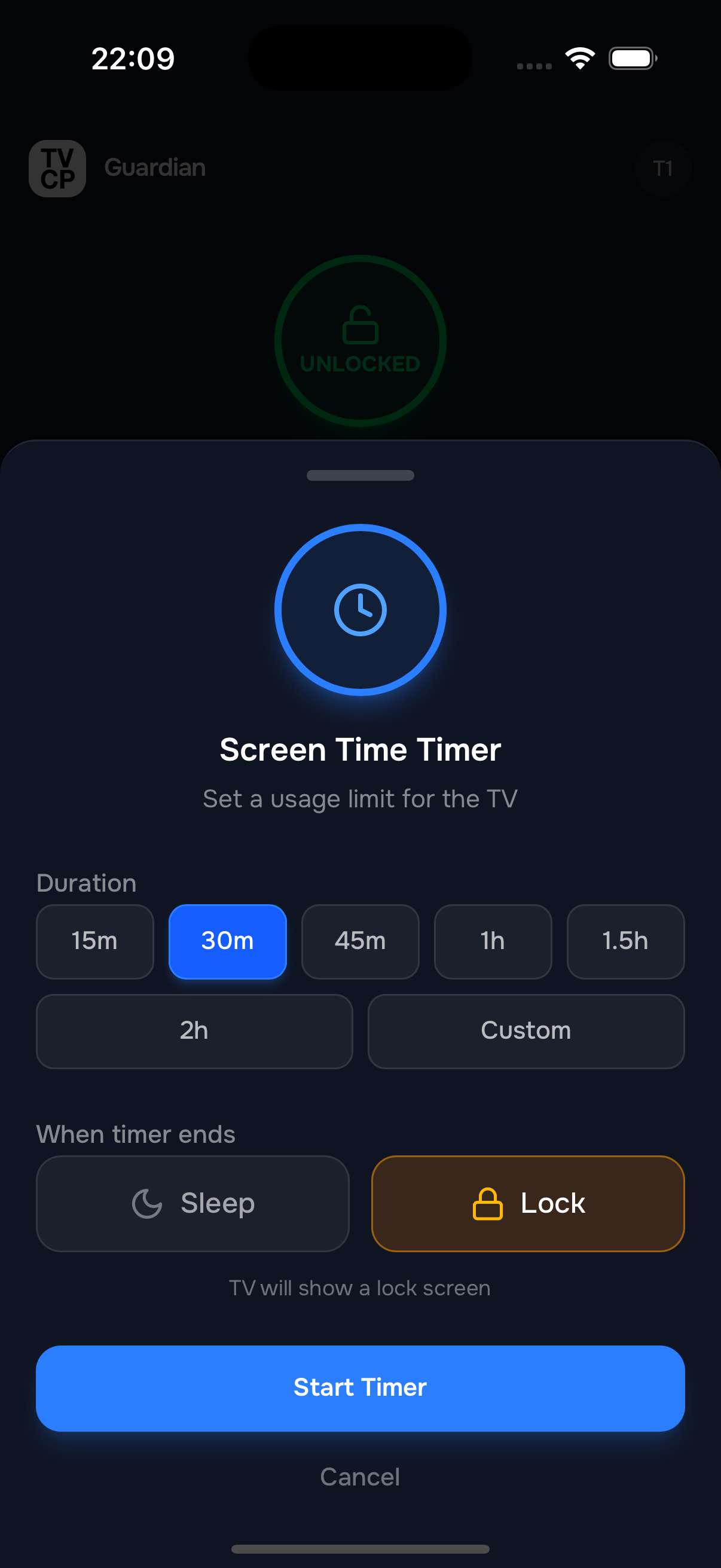
Start a countdown straight from your phone and the TV locks the moment it runs out. Perfect for capping a single session — one more show, then it's off.
Secure With
a PIN Lock
Kids can't bypass your settings
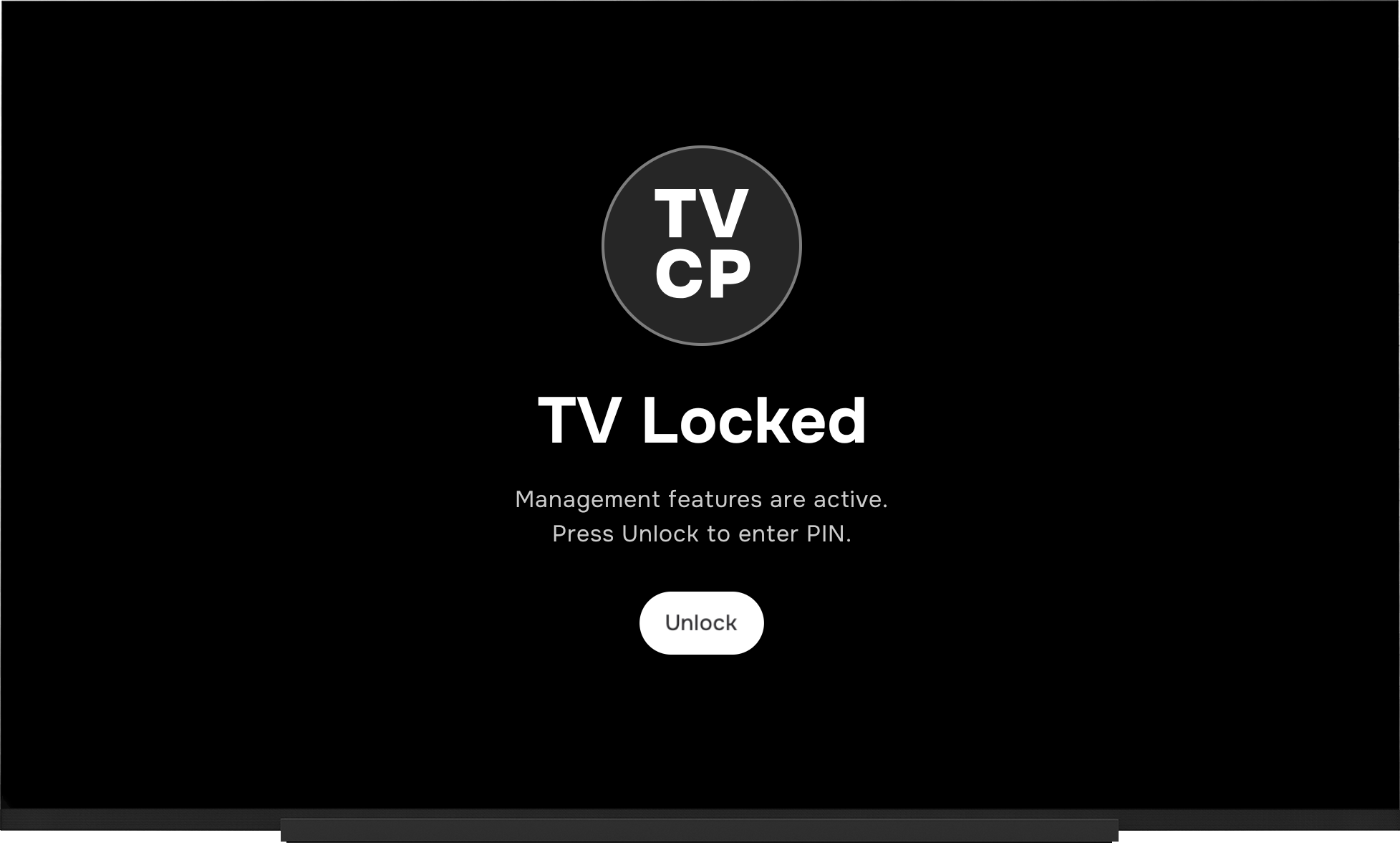
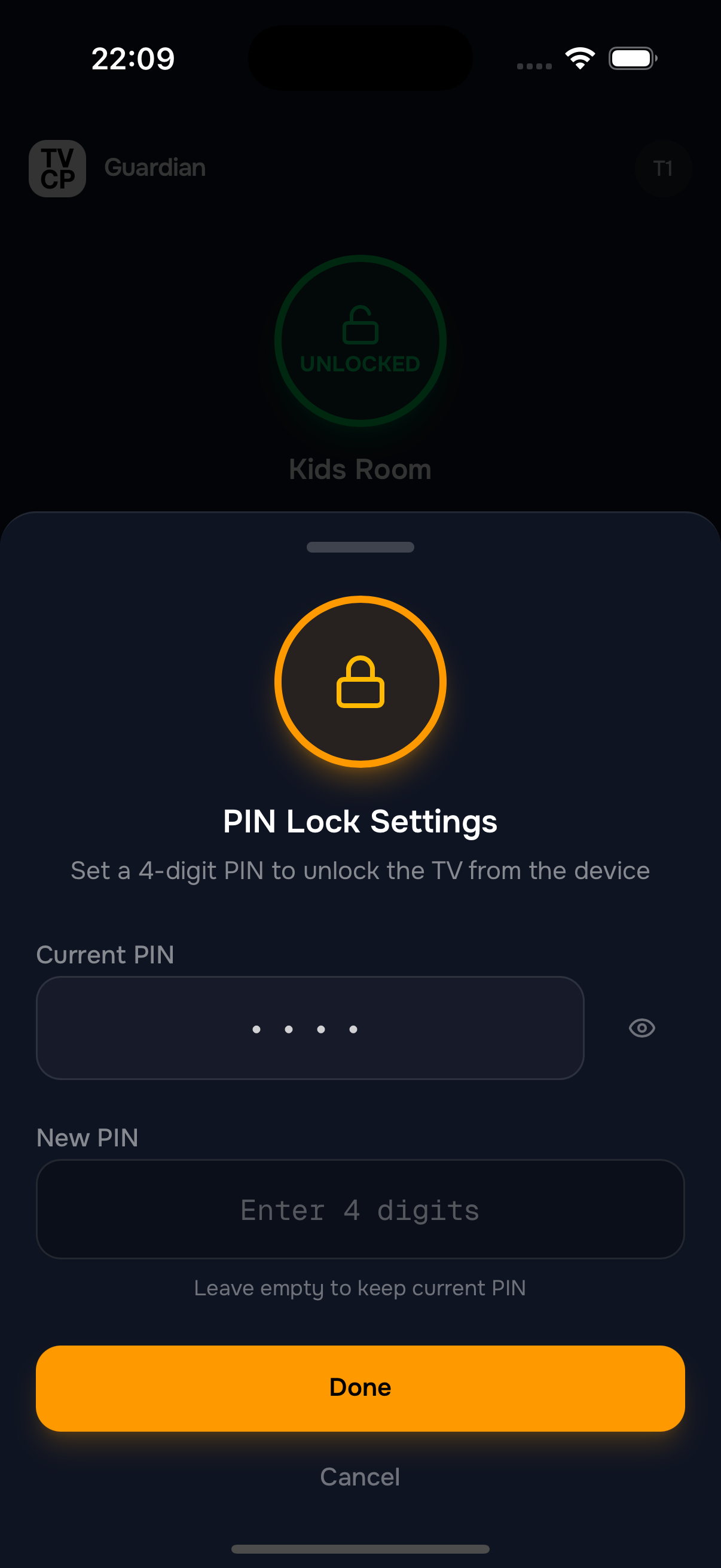
Set a 4-digit PIN that locks your parental control settings on the TV. Only you can unlock or change settings — keeping your kids safe and your rules enforced.
Cap the Volume
So it can't be cranked too loud
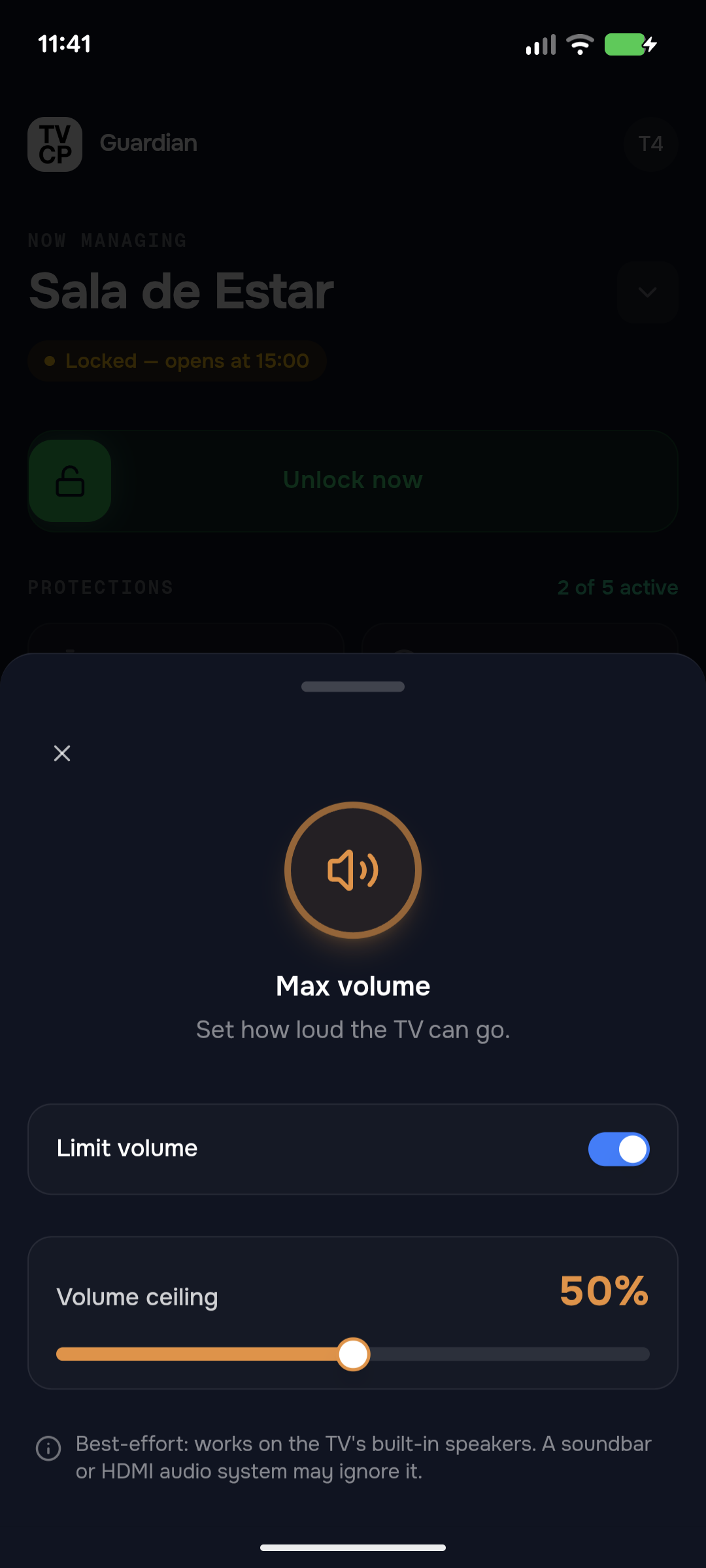
Set how loud the TV can go, so it can't be pushed past a level you choose. Works on most TV models.
Pricing
From $3.99 a Month
How many TVs do you want to cover?
TVs in your home Each extra TV adds $1 a month
1 TV · Monthly
$3.99 /month
Billed monthly. Cancel anytime.
1 TV · Yearly
$33.99 /year
just $2.83/mo · Save 29%
Billed once a year. Cancel anytime.
2 TVs · Monthly
$4.99 /month
Billed monthly. Cancel anytime.
2 TVs · Yearly
$41.99 /year
just $3.50/mo · Save 30%
Billed once a year. Cancel anytime.
3 TVs · Monthly
$5.99 /month
Billed monthly. Cancel anytime.
3 TVs · Yearly
$49.99 /year
just $4.17/mo · Save 30%
Billed once a year. Cancel anytime.
4 TVs · Monthly
$6.99 /month
Billed monthly. Cancel anytime.
4 TVs · Yearly
$58.99 /year
just $4.92/mo · Save 30%
Billed once a year. Cancel anytime.
5 TVs · Monthly
$7.99 /month
Billed monthly. Cancel anytime.
5 TVs · Yearly
$66.99 /year
just $5.58/mo · Save 30%
Billed once a year. Cancel anytime.
Your final price depends on your country and store, and the App Store or Google Play shows it before you subscribe.
Everything included
- Screen time limits
- Viewing schedules
- Remote TV lock
- App blocking
- Sleep timer
- Max volume cap
- Guardian remote from anywhere
7-day free trial · then from $3.99/month · cancel anytime
7 days free for eligible new subscribers. Cancel anytime in your App Store or Google Play account settings.
Roadmap
What's Coming Next
We're building more powerful tools to help you manage your child's screen time.
Now Playing Monitor
See what's currently playing on the TV in real-time. Know exactly what your kids are watching.
Activity Reports
See which apps are being used and for how long. Identify viewing habits at a glance.
FAQ
Frequently Asked Questions
Everything parents ask before getting started.
Is it hard to set up?
Can my kid bypass it?
What TV devices does it work on?
To check yours, open the Play Store on your TV and search for TV Control for Parents. If it shows up, your TV works. Having the Play Store isn't enough on its own, because some cheap boxes run regular Android, made for phones and tablets, and TVCP doesn't show up there. And some brands, like TCL and Hisense, also sell TVs with Roku or Fire TV, so check your model, not the brand.
It does not work on LG (webOS) or Samsung (Tizen) TVs, on Roku or Amazon Fire TV devices, or on Vizio.
Does it work with YouTube, Netflix, and other apps?
Is my data safe?
What data does the TV app collect?
What if I lose my phone?
How do screen time limits work?
Is TVCP free?
Can I control multiple TVs?
Ready to Take Control?
Start with the TVCP app on your TV, then get the Guardian app on your phone. Setup takes less than a minute.
7-day free trial · then from $3.99/month · cancel anytime