All help topics
Set your PIN
Short answer: Your PIN is a 4-digit code that unlocks the TV and opens TVCP's settings on the TV. You set it during setup, and you can change it any time in the Guardian app under Settings, your TV, PIN code.
Updated
The PIN is for when you’re in the room with the TV. On the lock screen, anyone who knows it can unlock the TV without your phone. It also protects Parent Settings in the TVCP app on the TV. Keep it to yourself: a child who knows the PIN can unlock the TV.
During setup the Guardian app asks for it on Set a PIN Code. To set or change it later:
Steps
- On your phone: open Settings. In the Guardian app, tap the round button with your initials at the top of the Home screen.
- Tap your TV under Devices.
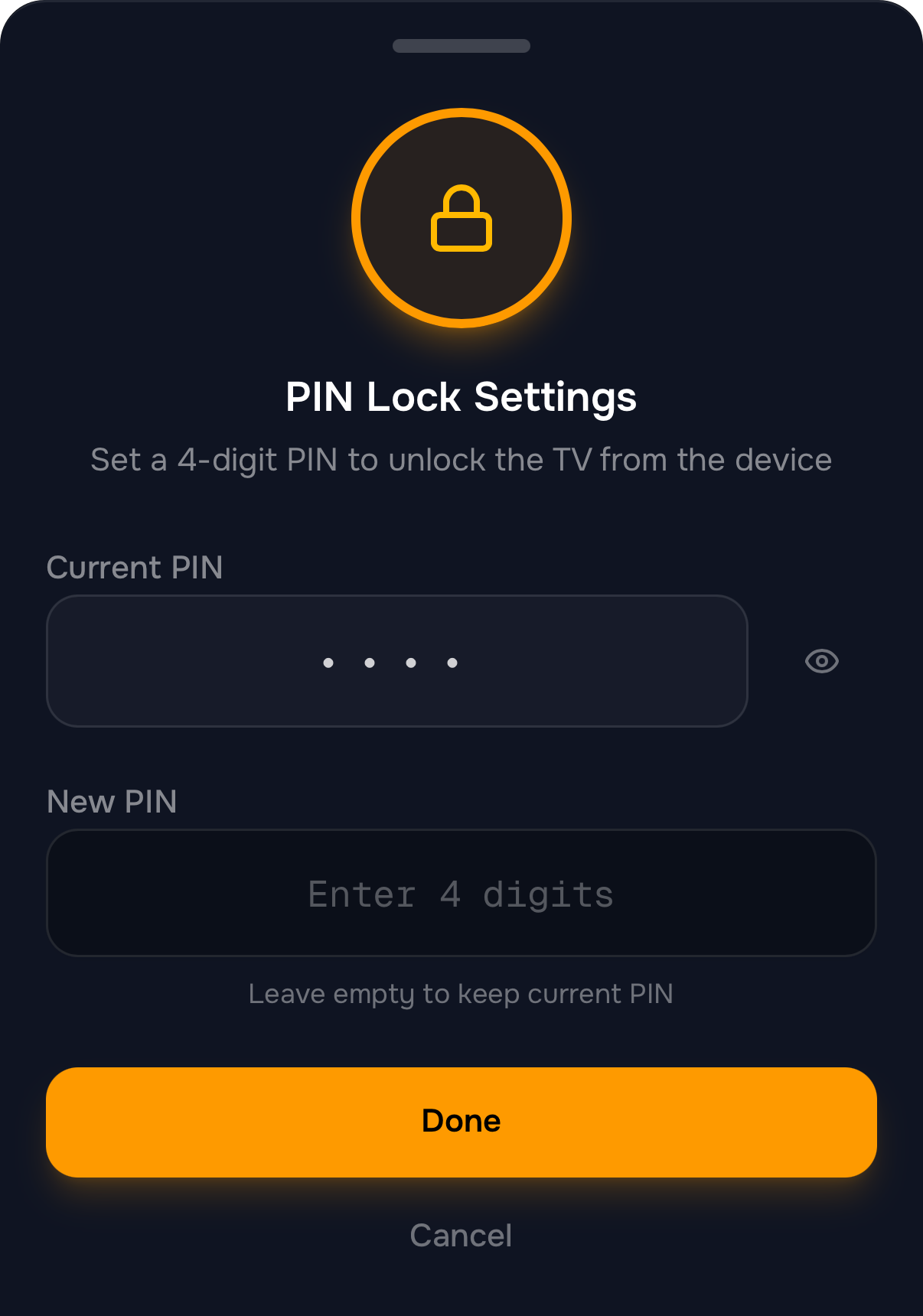
- Tap PIN code. The PIN Lock Settings sheet opens.
- Type 4 digits in New PIN (or Set PIN if you don’t have one yet).
- Tap Save PIN. The TV can now be unlocked with this PIN.
Using the PIN on the TV
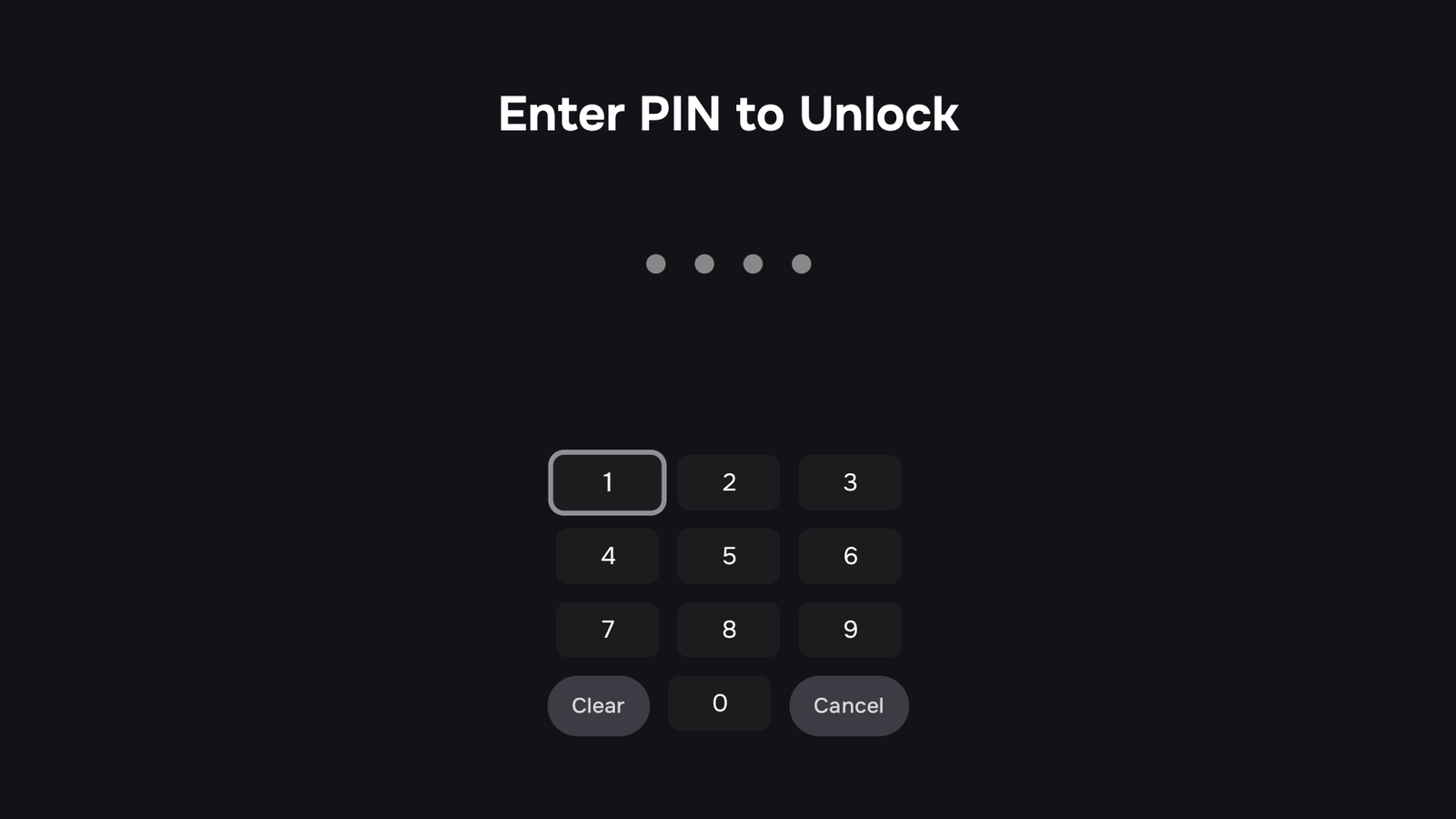
When the TV shows TV Locked, press Unlock on the remote. The TV shows Enter PIN to Unlock. Type the 4 digits.
Good to know
- One PIN covers every TV in your family.
- If you haven’t set a PIN yet, the Guardian app asks for one when a feature needs it, for example Uninstall Blocking.
- If you’ve forgotten it, or your child has learned it, see I forgot the PIN.
Next steps
I forgot the PIN (or my child knows it)
See your current PIN in the Guardian app, or set a new one if your child has learned it.
Lock and unlock the TV
Lock the TV from the Guardian app, unlock it with a slide, or unlock it at the TV with your PIN.
Stop apps being uninstalled (Uninstall Blocking)
Uninstall Blocking stops apps being removed and keeps your child out of the TV's Settings and the Play Store.